

The Sen shell
Deprecated in 0.8.0
This shell will be deprecated in Sen 0.8.0 and removed in a later release. Its replacement is
the term component, which is in beta now. It does what the shell does, in a full-screen
terminal, with a guided form for method arguments and log lines in the same stream as everything
else. Try it with sen term, and say what it is missing.
Getting it started
The Sen shell allows you to interact with all the objects that are published to the buses in the kernel.
It makes use of the extensive introspection capabilities that are built into Sen. That's why you get auto-complete, error-checking, argument parsing and even the ability to read the documentation.
You can run a stand-alone shell by typing:
And you can load the shell component into any kernel. You do it like this:
The configuration options and the commands the shell offers are defined in the component's STL:
// How lists should be printed
enum ListStyle: u8
{
  treeStyle,   // use a tree
  plainStyle,  // simple list
}

// How timestamps should be printed
enum TimeStyle: u8
{
  timestampUTC,    // use UTC timestamps
  timestampLocal,  // use local time timestamps
}

// How buffers should be printed
enum BufferStyle: u8
{
  size,     // just print the buffer size
  hexdump,  // print the buffer content has hex numbers
}

// Holds information about a named query
struct Query
{
  name      : string,  // the name of the query (cannot contain spaces or dots)
  selection : string   // the query expression
}

sequence<string> SourcesList;
sequence<Query> QueryList;

// Configuration params for the shell
struct Configuration
{
  prompt        : string,       // defaults to 'sen> '
  timeStyle     : TimeStyle,    // how to display time
  bufferStyle   : BufferStyle,  // how to display buffers
  serverEnabled : bool,         // enables remote shell access (false by default)
  serverPort    : u16,          // 0 means default
  noLogo        : bool,         // true if you don't want a welcoming logo
  open          : SourcesList,  // list of sources to open automatically
  query         : QueryList,    // list of queries to create automatically
  logBus        : string        // where to find the logmaster, if any (default: local.log)
}
Once you start the shell, you can use tab to auto-complete and to see the available commands. If you
type help you will see more info about all the options you have.
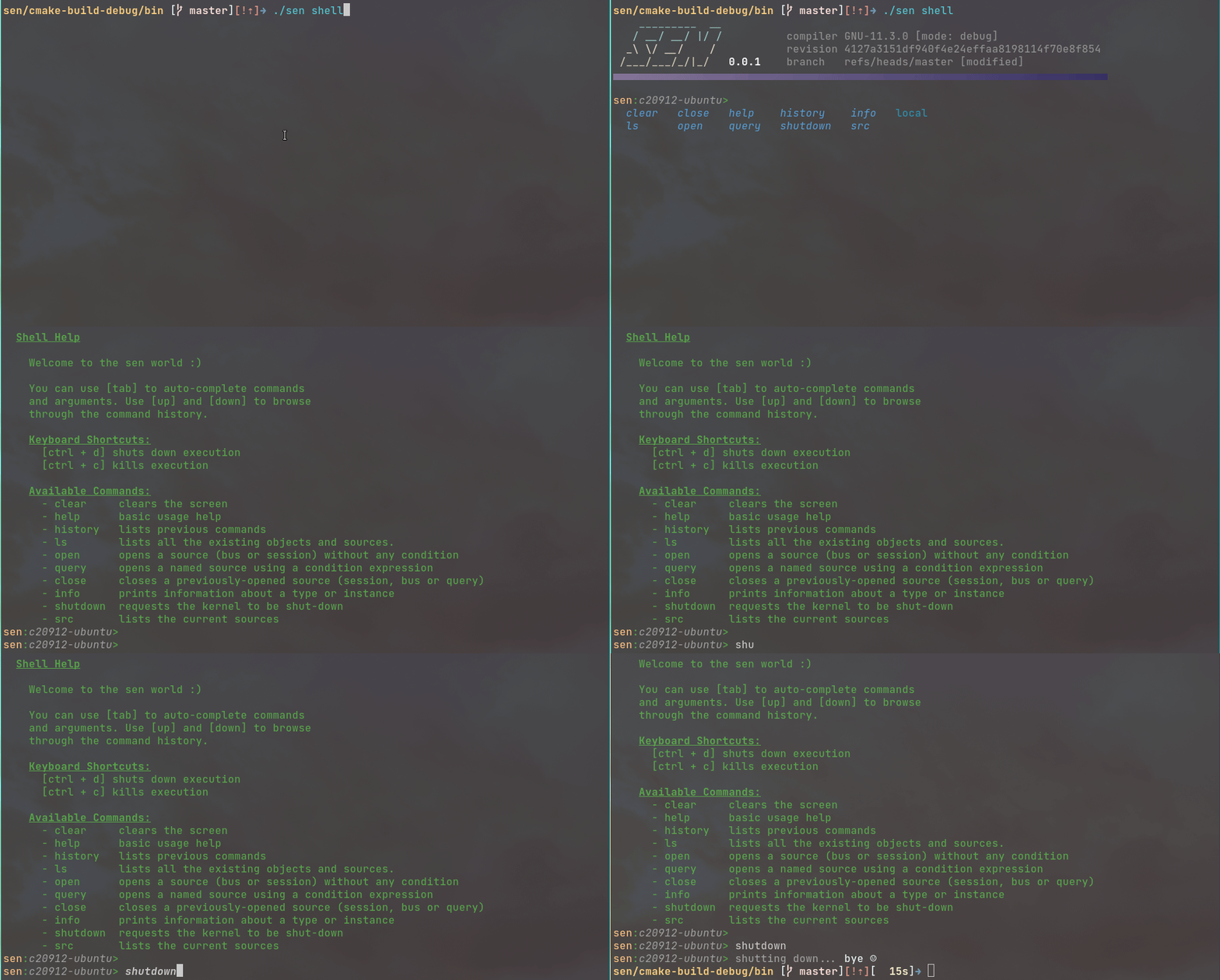
To shut down, type Ctrl+D on an empty line, or use the shutdown command. Both stop the whole
kernel. If you loaded the shell next to other components, those stop too.
Command reference
What you type is either one of the built-in commands below, or the address of something on a bus followed by the member you want and its arguments.
  // clears the screen
  fn clear() [const];

  // basic usage help
  fn help() [const];

  // lists previous commands
  fn history() [const];

  // lists all the existing objects and sources.
  fn ls() [const];

  // opens a source (bus or session) without any condition
  fn open(source: string);

  // opens a named source using a condition expression
  fn query(name: string, condition: string);

  // closes a previously-opened source (session, bus or query)
  fn close(source: string);

  // prints information about a type or instance
  fn info(term: string) [const];

  // requests the kernel to be shut-down
  fn shutdown() [const];

  // lists the current sources
  fn src();
Anything else is an address of the form session.bus.object.member:
| To do this | Type |
|---|---|
| Read a property | local.counters.myCounter.getValue |
Write a [writable] property |
my.tutorial.timer.setNextProgram "20 s" |
| Call a method, one argument | my.tutorial.fibManager.computeFibonacci 8 |
| Call a method, several arguments | my.tutorial.calc1.add 10, 5 |
| Call a method taking strings | local.replay.replayer.open "my_replay", "school_recording" |
| Call a method that returns nothing | my.tutorial.client1.useCalculator |
| Dump an object's current state | my.tutorial.elon.print |
| Inspect a type or instance | info local.counters.myCounter |
Arguments are separated by commas. Strings, durations and enumeration values are quoted; numbers
are not. Properties are read with the generated get<Prop>() accessor
and written with setNext<Prop>(), exactly as they are from C++, and
only [writable] properties expose a setter.
A getter prints the property name alongside its value, a method prints the returned value on its own, strings come back quoted, and a setter that worked prints nothing whatsoever:
sen:host/config> local.example.myObject.getProp5
- prop5: 453

sen:host/config> local.example.myObject.addNumbers 10, 5
15

sen:host/config> local.example.myObject.echo hello
"hello"

sen:host/config> local.example.myObject.setNextProp5 42

sen:host/config>
So the empty line after setNextProp5 is success, not a swallowed error. Read the property back if
you want to see the effect, bearing in mind that the write lands on the next cycle rather than
this one, and that if the object assigns that property itself during update() then your value is
whatever the object last wrote, not the one you typed.
Calls do not block. Sen is asynchronous, so the shell returns immediately and prints the result when it arrives, which may be a cycle or two later.
Opening and closing buses
The ls command is especially useful because it allows you to see all the objects that are visible
by the shell.
The shell does not see any objects by default. The only thing you can see are the available sessions. You need to open sessions and their buses so that the shell can start discovering objects.
The open command can be used to connect to a bus or to open a session and discover the available
buses. This command has auto-complete capabilities to help you. Try it.
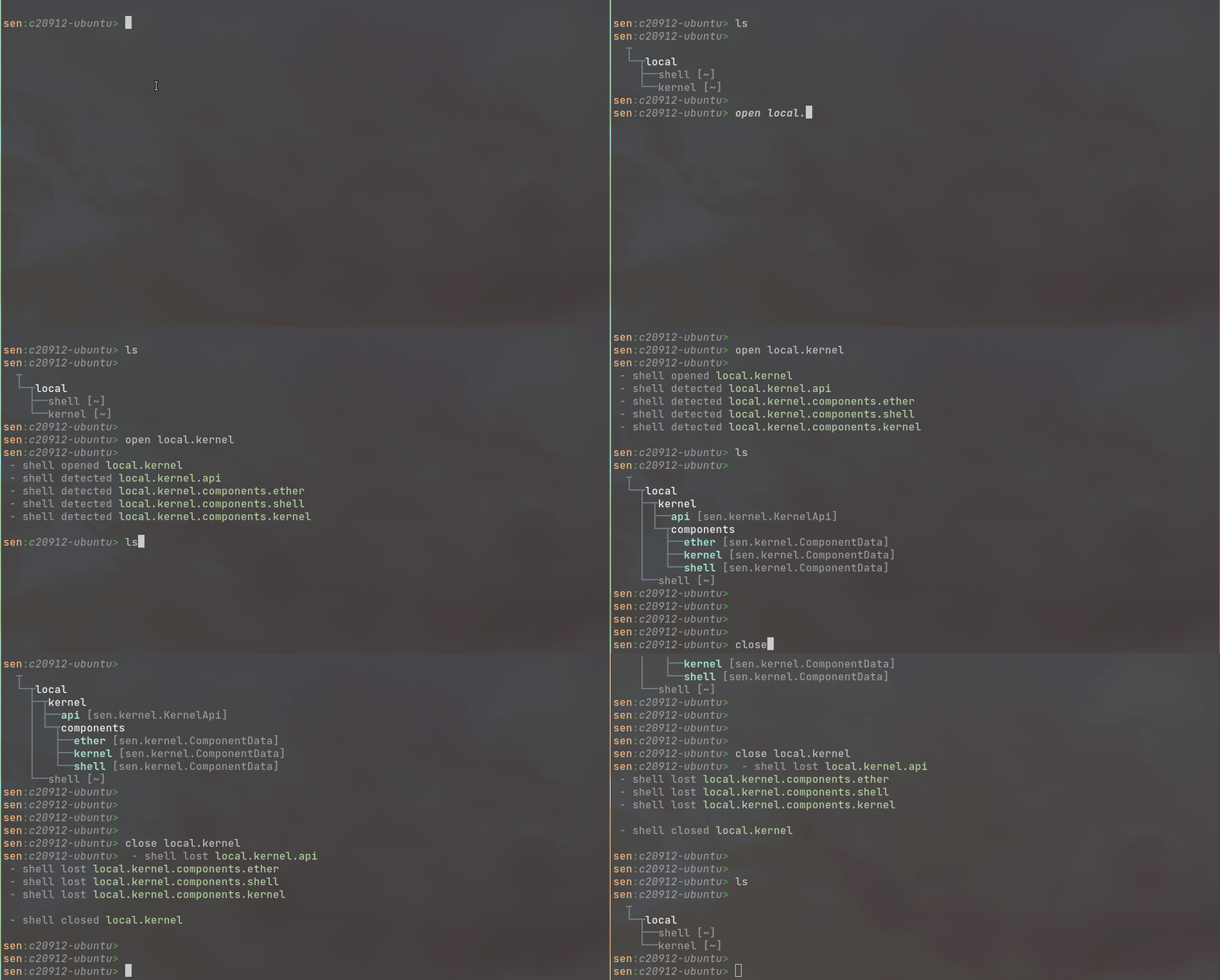
You can see that the shell lets you know when objects are discovered. The ls command shows them.
The close command does the inverse.
Sometimes you will find yourself having to open some buses every time you load the shell. This is
because you are interested in working with some objects and the shell is not opening any bus by
default. To change this, you can set the open parameter in your configuration file and the shell
will automatically open them at the start:
Calling methods on objects
The shell allows you to invoke methods on objects, no matter if they are local or remote. Name the object, then the method, then the arguments:
The animation below shows the same thing against an object's addNumbers method.

The shell is meant to be an interactive interface. For scripting, see what ships with Sen; several of those components expose the same objects to code.
Introspecting the system
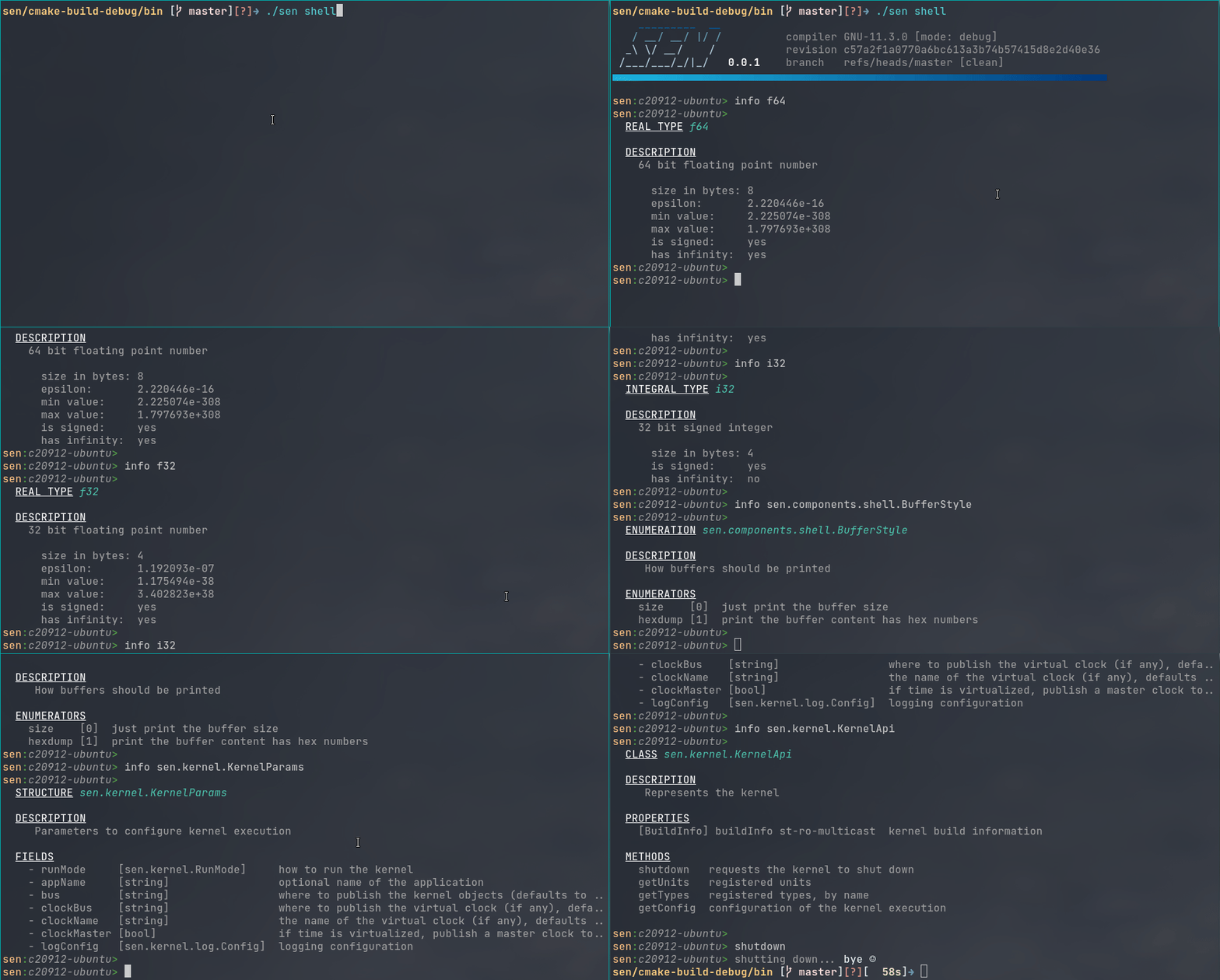
You can use the shell to get information about the system. For example, you can use the kernel object to find out the available types, units and the build information of the kernel and all components.
And there's also a method named info, that you can use to inspect all the details of the available
types (the built-in types, and also any type received over the network during execution).
Creating queries
When you open a bus, you are declaring an interest in all the objects that are published in it.
You can inspect the list of active interests by using the src command. Calling
open local.kernel and then src shows this:
That is an active query named "local.kernel.all", declaring an interest in all objects of that bus.
You can create your own queries, and therefore use the shell to monitor certain objects. For example, create a query that only notifies about entities in the se.env bus whose force ID property is "neutral" or "friendly", named "friendly_fire":
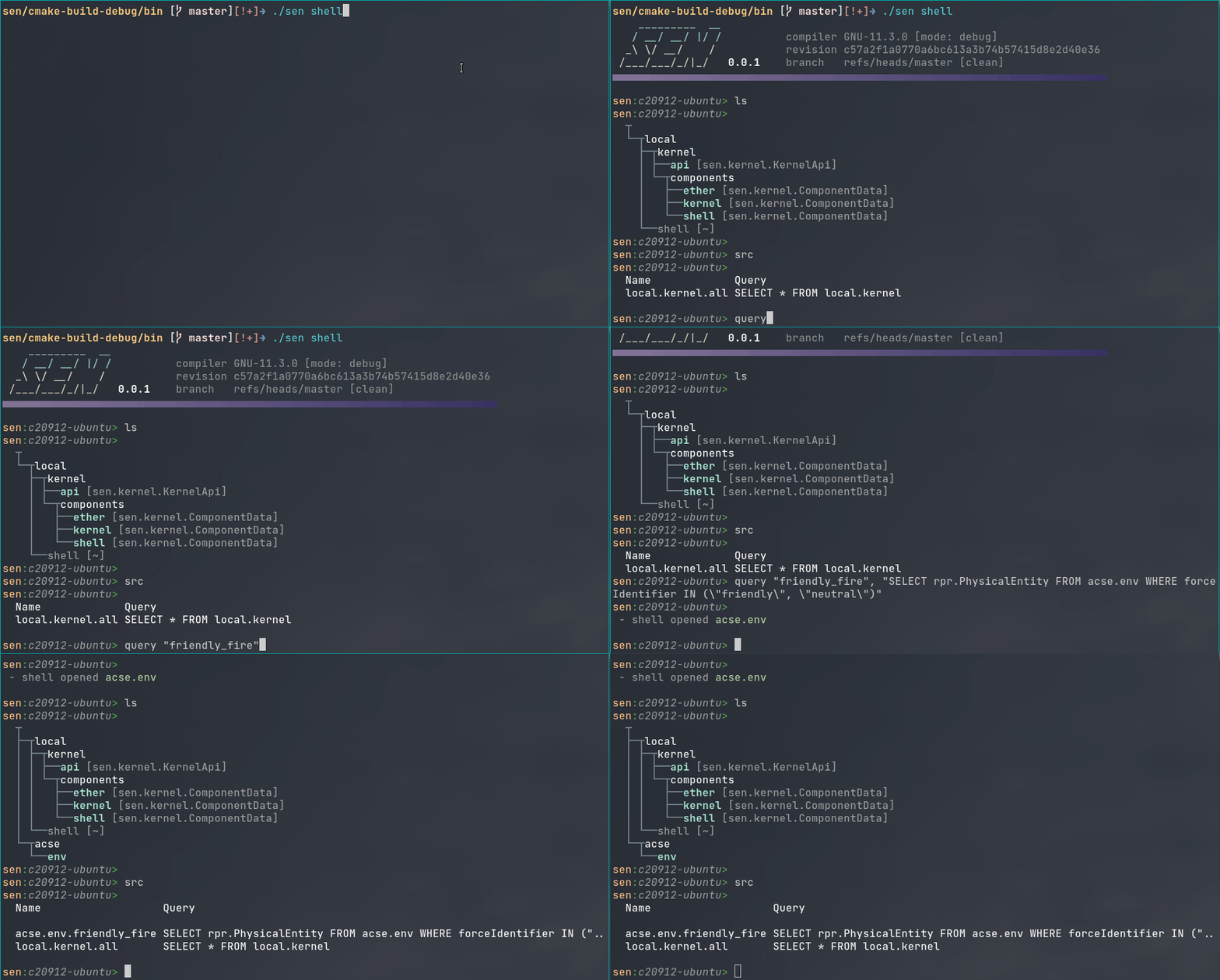
You can now see that the shell automatically opened the se.env bus and created a query named se.env.friendly_fire.
As soon as the query is active, Sen automatically evaluates the objects on the bus. The shell will:
- Notify you of discovered objects that meet the query conditions. Once an object has been discovered, you can interact with it as usual.
- Notify you when an object no longer meets the query conditions (or is destroyed), meaning it has been removed from your view.
You can always run the ls command to see the objects currently matching your active queries.
Note: Currently, you cannot see which object on a bus belongs to a specific query.
To close/delete a query, use the close command and pass the name of the query.
If you want the shell to automatically open some predefined queries, do as follows:
load:
  - name: shell
    query:
      - name: lat_in_range
        selection: "SELECT rpr.PhysicalEntity FROM se.env WHERE spatial.SpatialFPStruct.worldLocation.x BETWEEN 0.0 AND 500.0"
      - name: friendly_fire
        selection: "SELECT rpr.PhysicalEntity FROM se.env WHERE forceIdentifier IN (\"friendly\", \"neutral\")"
Connecting to a remote shell
Sometimes, during development, you will run your Sen application in a remote computer. Maybe you don't have ssh access, or the process was started by a script, launcher or orchestrator. How would you connect to the Sen process and access its shell? Enter the remote shell.
You can connect to a remote shell by doing sen rshell. For example:
This process is very light and doesn't run any Sen kernel at all. It just talks to a shell running in a remote Sen kernel over a TCP channel.
Remote shell access is off unless you set serverEnabled, and the connection is unauthenticated, so
it is intended for trusted networks.
It simply sends your key presses to the remote shell and receives low-level terminal drawing commands from it.
This means that you have all the power of the shell in your local terminal, even if your local terminal is Windows and the Sen process is on a Linux computer.
This starts a Sen process hosting a shell reachable only from outside, then connects to it with
sen rshell.
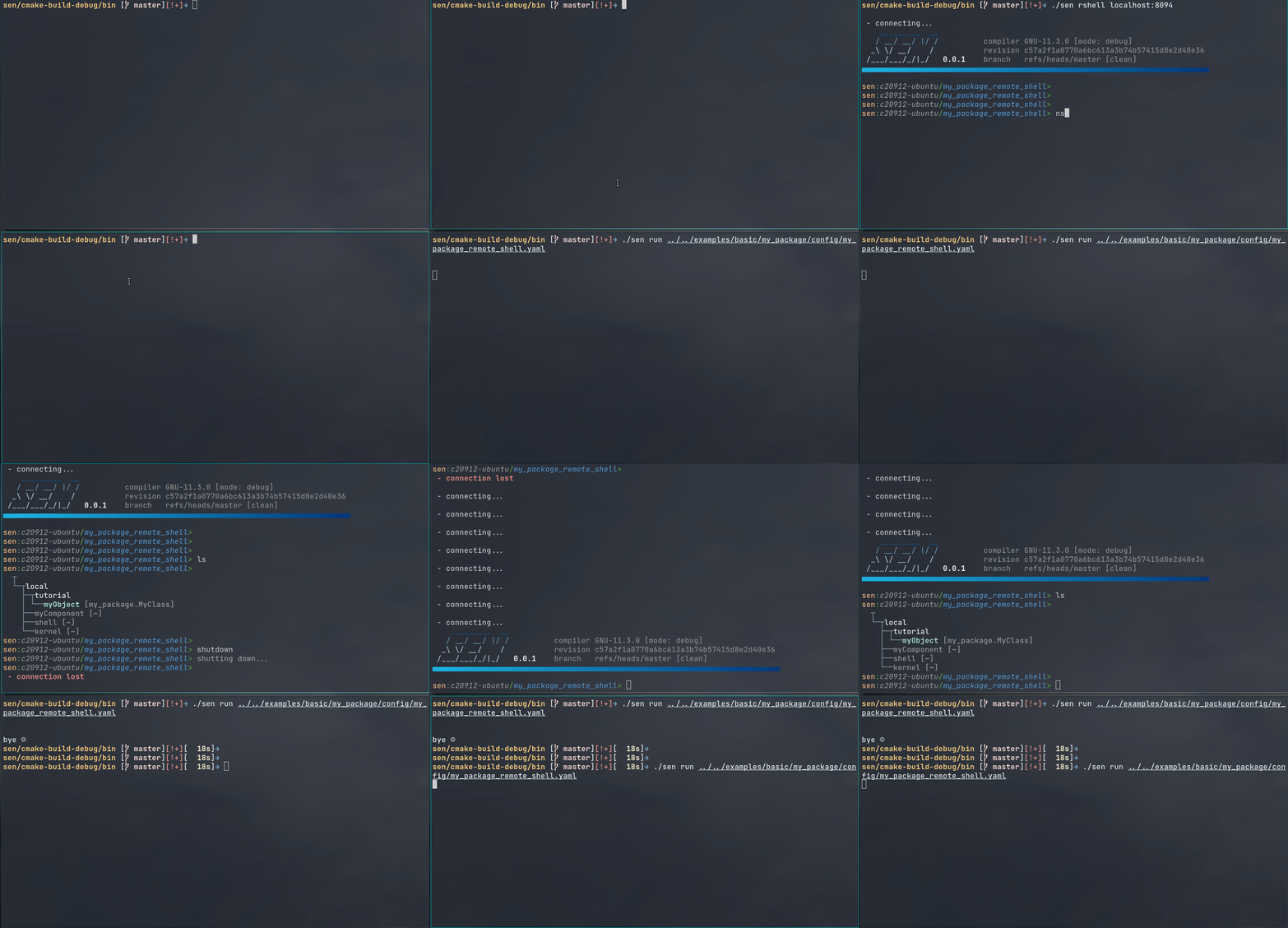
To configure your shell to accept remote connections you need to set the serverEnabled and
serverPort parameters. The last example used the following:
# A shell meant to be reached remotely, via serverEnabled. serverPort is
# optional and sets a custom port.
#
# If you start this process, you will see nothing, but if you start a connection
# to it, you will see that it is like working locally. To do so run:
#
#   sen rshell <hostname>:8094
#
load:
  - name: shell
    group: 2
    open: [ local.tutorial ]  # to see the created objects
    serverEnabled: true
    serverPort: 8094