The Sen Terminal (BETA)
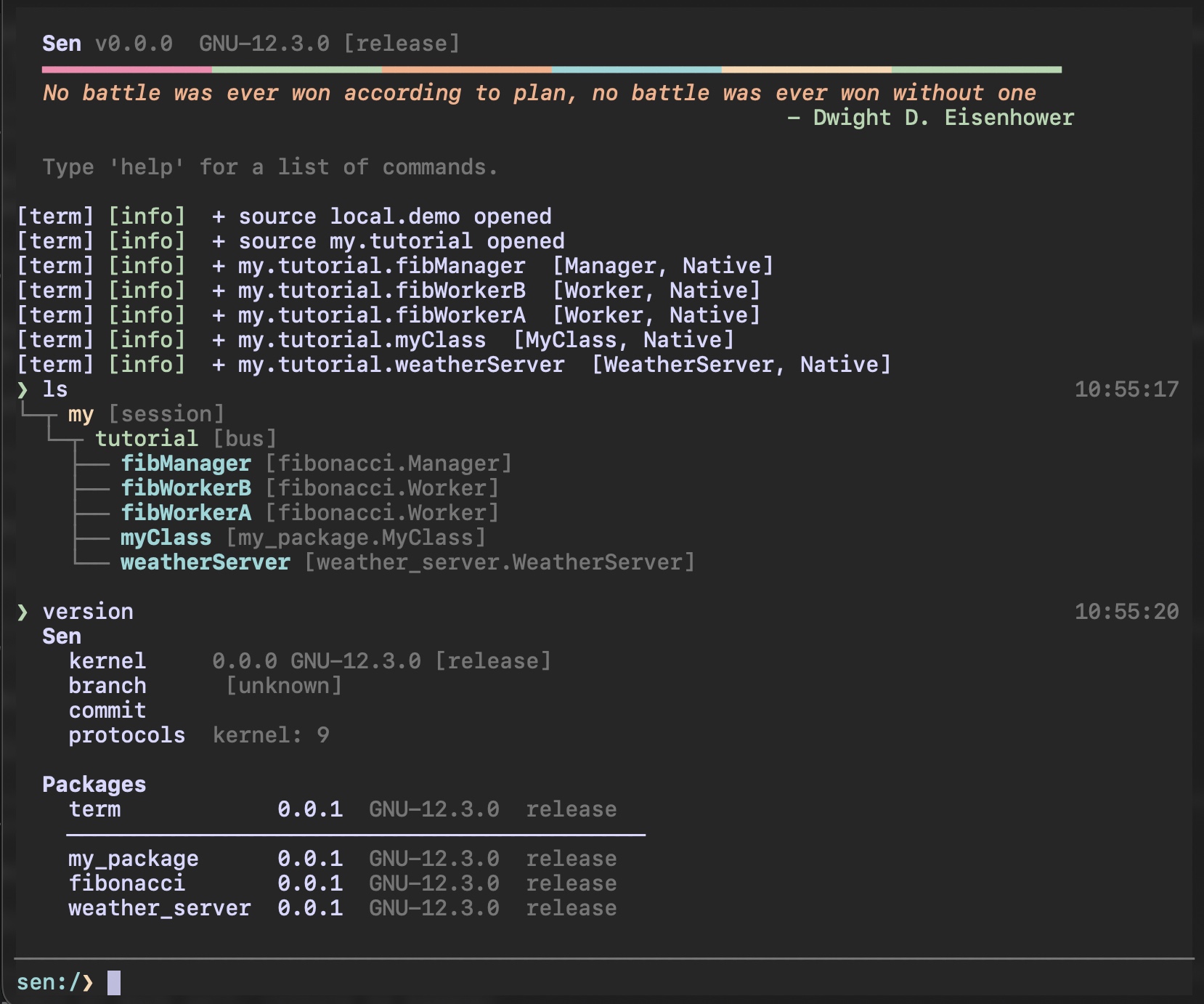
The Sen Terminal (term) lets you open buses, find the objects on them, call their methods, watch
their events and inspect their types, from one prompt. It is the successor to the
shell and the two share the same workflow.
Term is in beta.
Getting it started
Load it into any kernel configuration:
Or run it on its own, which starts a kernel with nothing in it but the term and its own bus:
The examples on this page come from the showcase configuration in Sen's own source tree. It puts one
object with every kind of method argument on local.demo, ticks its properties so there is live data,
and creates two queries. From a source checkout built with tests enabled:
The file's own header lists every editor, property and event it offers. The showcase package is built with the tests, so it is not in a release install; against your own objects, the commands are the same and only the names change.
On startup you get a banner with the Sen version, the compiler, whether this is a debug or a release
build, and a quote, then a prompt. The version command has the rest, including the git branch and
revision this binary was built from.
exit, shutdown, Ctrl+D on an empty line, or Escape twice all ask the kernel to stop every component
gracefully.
Term needs a real terminal on both standard input and standard output. If either one is a pipe or a file, term says so and stops; the rest of the kernel carries on without it. So a configuration that carries term still starts in a build job or under a pipe, with an error in the log and no terminal.
The screen
Output scrolls above a horizontal rule; the prompt sits below it. Command results, log lines and event emissions all arrive in that one stream, in the order they happened.
The prompt shows your current scope, for instance sen:/local.demo❯.
The scrollback holds the last 5000 entries. Past that the oldest go, so a long session does not keep everything you have seen.
Typing and editing
| Key | Does |
|---|---|
| Left / Right | Move one character |
| Ctrl+Left / Ctrl+Right | Move one word. A dotted path is several words |
| Home / Ctrl+A | Move cursor to the start of the line |
| End / Ctrl+E | Move cursor to the end of the line |
| Backspace / Delete | Erase one character either side of the cursor |
| Ctrl+U | Erase from the cursor to the start of the line |
| Ctrl+K | Erase from the cursor to the end of the line |
| Ctrl+W | Erase the word before the cursor |
| Alt+D | Erase the word after the cursor |
| Up / Down | Walk the command history |
| Ctrl+R | Recall the most recent command containing what is on the line |
| Ctrl+L | Soft clear (scroll the output out of view) |
| Tab / Shift+Tab | Completion, forwards and backwards |
| PageUp / PageDown | Scroll the output ten rows |
| F1 | Run help |
| Escape | Clear the line; on an empty line, arm exit; Escape again exits |
| Ctrl+D | Exit, from an empty line only |
| Ctrl+Y | Copy the current selection to the clipboard |
Ctrl+Backspace is not in that table because the term cannot tell it from an ordinary Backspace: FTXUI delivers both as the same event. Use Ctrl+W.
Movement and erasing work in characters, not bytes, so accented letters, CJK text and emoji behave
the way you expect. History is kept across sessions in ~/.sen_history.txt (%USERPROFILE% on
Windows), capped at 2000 lines and shared with the shell component. With no home directory in the
environment, history lasts only as long as the session. You can view your past commands at any time
using the history command (e.g., history 10 to see the last 10).
What the line accepts
The command line holds 8192 bytes. Each field of the guided-input form, the form that opens when a method needs arguments, holds the same. Past that, characters are refused and the term says so once; Escape clears the line. A line that was cut is not submitted: pressing Enter says so instead, because sending it would report a parse failure about text you never finished.
A paste arrives as text, not as keystrokes. The term asks the terminal to wrap pasted content in
markers, which is the only way to tell a paste from someone typing very fast. Inside those markers a
newline becomes a space rather than running the line, and so does a Tab, rather than opening
completion. The term says how many line breaks it joined, so a multi-line paste does not look like
something you typed. Every other control character in a paste is dropped.
Escape during a paste cancels it and keeps the text received so far, which is the way out if the terminal's end marker never arrives; failing that the term releases itself after two seconds of silence and says so. A marker split across a slow link is handled without either: its pieces are recognised and its tail is not left on your line.
A terminal that does not send the markers gives the term nothing to recognise, and then a paste really is typed: a newline in it submits the line. If your paste runs three commands instead of becoming one line, that is what happened.
A line long enough to wrap shows the prompt's row, the rows around the cursor, and a note saying how many rows are not shown.
Tab completion
Press Tab. One match is inserted; several open a grid above the prompt. Tab again cycles
forward, Shift+Tab backward, Enter accepts the highlighted candidate — it does not run the line, so
press Enter again to do that — . accepts and lets you keep typing a deeper path, and Escape
dismisses the grid and restores what you had typed.
When only one match exists at an intermediate level, Tab inserts it and moves on — so l, Tab can
take you to local.demo. in two keystrokes when there is only one session and one bus.
| Context | What Tab completes |
|---|---|
| Empty input | Every command, and the objects in scope |
Partial command (he) |
Matching commands (help) |
Object path (local.) |
Available buses, then objects |
Object + dot (showcase.) |
Methods, property getters and setters, and print |
open argument |
Sources discovery has seen, whether or not they are open |
close argument |
Currently open sources |
cd and ls argument |
Child scopes, .., -, /, @query names |
query argument |
SELECT, type names, FROM, bus names, WHERE keywords |
listen argument |
Object paths and object.event paths |
unlisten argument |
The same, plus all |
log argument |
level, log level names, logger names |
theme argument |
Available theme names |
help argument |
Command names |
inspect and types argument |
Object paths and type names |
units argument |
Unit category names |
Re-opening a source that is already open does nothing and says nothing, so an offer from the open
list is not a promise that there is work to do.
Navigation and scoping
Scoping narrows the view, which shortens what you have to type and focuses ls.
sen:/❯ cd local.demo
sen:/local.demo❯ ls
└── showcase [term_showcase.ShowcaseImpl]
sen:/local.demo❯ cd ..
sen:/local❯ cd ..
sen:/❯
A bus is two levels below the root: cd local.demo goes straight to the bus, and cd .. from there
leaves you at the session, which lists the buses that session has. cd .. again reaches the root.
cd - returns to the previous scope, cd / and cd with no argument go to the root, and cd @name
enters a query.
ls draws the objects in scope as a tree, with each object's class in brackets after its name.
Nested object groups are separated with /, the same way the rest of the path is, so whatever the
prompt shows is a target you can type back — leading separator included:
cd /local.demo/sensors/indoor and cd sensors then cd indoor reach the same place. A target
containing a dot is always read as session.bus, wherever you are, so cd a.b at a bus scope goes to
bus b of session a rather than into a group.
ls takes an optional path or @query, and pwd prints the current scope.
Opening and closing buses
sen:/❯ open local.demo
[term] [info]  + source local.demo opened
[term] [info]  + showcase  [ShowcaseImpl, Native]
sen:/❯ close local.demo
A batch of five objects or fewer is listed one object to a line, as above. A larger batch is counted
instead: + 12 objects detected, and above fifty the number of distinct classes comes with it.
Those notices go through the term's own logger, which is why they arrive tagged [term] [info]. That
also means the log level governs them: after log level warn, open and query do their work and
print nothing at all. If a command looks as though it did nothing, check the level with log.
Sources listed under open in the configuration are opened at startup. A query whose FROM
clause names an unopened bus opens it for you.
Calling methods
Type the object path, a dot, and the method name.
print is the one call every object answers without arguments: it prints the value of every property.
A method that needs no arguments runs immediately. The line shows a spinner with an elapsed-time counter
while the call is out, then a green check and the return value, or a red cross and the error. Calls
are asynchronous and several can be in flight at once. A call that gets no answer within
callTimeout is reported as timed out rather than spinning forever.
Arguments on the command line
Simple values go straight after the method name; structures take JSON. Too many arguments, or a value of the wrong type, is refused with the format that was expected:
sen:/local.demo❯ showcase.moveTo 1 2 3
  Error: Invalid arguments
    Too many arguments: expected 1, got 3. Expected format: showcase.moveTo <Point>
The guided-input form
Press Enter on a method that needs arguments and a form opens under the prompt, one field per argument, with an editor chosen for the type. Tab and Shift+Tab move between fields.
| Type | Editor | Keys |
|---|---|---|
| bool | Toggle checkbox | Space to toggle |
| integer (i32, u64, etc.) | Text field with spin | Left/Right to increment/decrement, clamped to type range |
| float (f32, f64) | Text field | Type decimal numbers |
| string | Text field | Free-form text input |
| enum | Cycle selector | Left/Right arrows to cycle through enumerators; description shown in hint |
| Duration | Text field | Type with unit suffix (e.g., 100ms, 1.5s, 2m) |
| Timestamp | Text field | Type as ISO 8601 string |
| Type | Editor | Keys |
|---|---|---|
| struct | Named sub-fields in a tree | Tab into each field |
| sequence | Indexed elements, dynamically sized | Ctrl+N to add element, Ctrl+X to remove focused element |
| variant | Type selector + value editor | Left/Right to change the active type; value editor adapts |
| optional | Presence toggle + value editor | Space on the row or Ctrl+O inside, to toggle between empty and filled |
| quantity | Value field + unit selector | Edit the numeric value; Left/Right on the unit row to change units |
A bounded sequence shows a count and refuses Ctrl+N at capacity. A fixed-size array starts full and refuses both add and remove.
Listening to events
Naming an object without an event listens to all of its events. An emission arrives inline as a bullet,
session.bus.object → eventName, with the time on the right, and its arguments indented on the line
beneath. An event that carries no arguments is that one line on its own — tick and heartbeat in the
showcase are both like this.
You can listen to an object that has not appeared yet: the listener is kept and attached the moment one with that name arrives. Listeners also survive their object disappearing and reconnect when it returns, matched on the object's full name rather than on whatever scope you were in.
unlisten <object> drops the listeners on one object, unlisten all drops every one, and listeners
lists them.
Listeners named under listen in the configuration are registered at startup.
Creating queries
A query is a named filter over objects, in Sen's selection language.
sen:/❯ query shown SELECT term_showcase.Showcase FROM local.demo
[term] [info]  + query 'shown' created
sen:/❯ cd @shown
sen:@shown❯ ls
└─┬ local
  └─┬ demo
    └── showcase [term_showcase.ShowcaseImpl]
A query scope lists its objects by their full name, so the session and the bus appear as the two levels above them.
SELECT <Type> FROM <session>.<bus> matches a type, SELECT * matches everything, and WHERE filters
on properties. Two queries cannot select the same thing, whatever they are called, and all is
reserved. The showcase configuration already defines workers and everything, so those two names and
their selections are taken.
queries lists them and query rm <name> removes one. close <session>.<bus>.<name> also removes a
query and closes the bus with it if that query was the only reason it was open, but only a query that
holds a source of its own: one whose selection matched a bus that was already open shares that bus's
source, and close then says it cannot find it. query rm removes either.
Inspecting types and objects
sen:/❯ inspect local.demo.showcase
sen:/❯ inspect term_showcase.Point
sen:/❯ types
sen:/❯ types Worker
Inspecting an object shows its class and inheritance chain, its description, then its properties, methods and events, with types and descriptions, inherited members included. Inspecting a type shows a struct's fields, an enum's values and keys, a sequence's element type and bounds, or a variant's alternatives.
inspect also lists an object's events. Tab knows them too, but only where an event is what you could
mean: after listen showcase. or unlisten showcase.. After showcase. on its own it offers methods,
property getters and setters, and print.
Pressing Enter on a method with its arguments left off opens the guided form, described above. The
signature is printed instead of a form only when an argument is of a kind the form cannot represent. It
names each argument as name : Type followed by the argument's description, or the type's own
description when the argument has none, and it leaves out the returns line for a method that returns
nothing.
units lists the unit categories and the units in each, and takes a filter.
Logging
sen:/❯ log                           # every logger and its level
sen:/❯ log level info                # the global level
sen:/❯ log level myComponent debug   # one logger
Levels are trace, debug, info, warn, error, critical and off. A log line arrives as its
sink wrote it, colours and all, so the logger name, the level and whether there is a timestamp are
whatever that sink's pattern says rather than something the term adds. The term's own rows do carry a
time on the right: command echoes, call results and event emissions.
Two notices say when the term has dropped something rather than shown it. N lines of captured output
were dropped: they arrived faster than the screen can draw them means more was written than a screen
can take. N further discovery notices were not shown means a burst of objects arrived. Neither loses
anything but the notice: the log file sinks and the objects themselves are unaffected.
Logging from other components
Term captures the process's standard output and standard error and shows what arrives on them. A
printf, a std::cout, a write(STDOUT_FILENO, …) or a logger's console sink all reach the output
pane rather than landing on top of the display.
Use spdlog, and take the logger from the kernel:
// in your component
auto logger = sen::kernel::KernelApi::getOrCreateLogger("my_component");
logger->info("my message: {}", value);
Most components wrap that call in a getLogger() helper of their own, as
Logging shows. A logger made with an spdlog factory instead lands in the
same registry, so log lists it and log level reaches it, but it misses what the kernel attaches
when it makes one: the crash reporter's ring. A logger constructed directly and never registered is in
no registry at all. To walk every logger, use KernelApi::applyToAllLoggers.
Themes
| Theme | Style | Description |
|---|---|---|
oneDark |
Dark | Atom One Dark |
oneLight |
Light | Atom One Light |
catppuccinMocha |
Dark | Catppuccin Mocha (warm, pastel, default) |
catppuccinLatte |
Light | Catppuccin Latte (warm, pastel) |
dracula |
Dark | Dracula (purple accents) |
nord |
Dark | Nord (arctic blue) |
gruvboxDark |
Dark | Gruvbox Dark (warm retro) |
gruvboxLight |
Light | Gruvbox Light (warm retro) |
tokyoNight |
Dark | Tokyo Night (blue-purple) |
solarizedLight |
Light | Solarized Light (classic) |
Set one in the configuration with theme: nord, or in the environment with SEN_TERM_THEME=nord.
Precedence runs default (catppuccinMocha), then configuration, then the environment variable.
Kernel status
sen:/❯ status
  Run mode  realTime

  Components
  Name          Group  Cycle time  Objects
  term              2    30.0 Hz        0  realtime
  my_package        1   100.0 Hz       12  realtime
  showcase          1       N/A         5
With a transport active, the output also carries cumulative UDP and TCP bytes sent and received.
Mouse
Scroll the output with the wheel. Drag across text to select it, and the selection is copied to the
clipboard when you release, with a note saying how much was copied; Ctrl+Y copies the current
selection on demand. Copying uses the OSC 52 terminal escape, so it works over ssh, and also hands
the text to a local helper when one is installed: pbcopy on macOS, wl-copy on Wayland, xclip
or xsel on X11, and clip on Windows.
Commands
help lists the commands by category, each with a one-line description, and ? is a shorter spelling
of it. help <command> prints that command's usage line and its longer description instead of the
list.
The list comes from the command table the term dispatches on, so it cannot name a command the build
does not have. It is not the whole surface either: shutdown is left out deliberately, and ? and
print are dispatched without table entries. The keyboard shortcuts printed under the list are a
hand-written list and can drift.
Configuration reference
The configuration options are defined in the component's STL, with the types they refer to:
// How timestamps should be displayed
enum TimeStyle: u8
{
  utc,    // use UTC timestamps
  local,  // use local time timestamps
}

// Color theme for the terminal UI
enum ThemeStyle: u8
{
  oneDark,          // Atom One Dark
  oneLight,         // Atom One Light
  catppuccinMocha,  // Catppuccin Mocha (dark, warm, default)
  catppuccinLatte,  // Catppuccin Latte (light, warm)
  dracula,          // Dracula (dark, purple)
  nord,             // Nord (dark, arctic)
  gruvboxDark,      // Gruvbox Dark (warm retro)
  gruvboxLight,     // Gruvbox Light (warm retro)
  tokyoNight,       // Tokyo Night (dark, blue-purple)
  solarizedLight,   // Solarized Light (classic)
}

// Holds information about a named query
struct QueryDef
{
  name      : string,  // the name of the query (cannot contain spaces or dots)
  selection : string   // the query expression
}

sequence<string> SourcesList;
sequence<QueryDef> QueryList;
sequence<string> NameList;

// Configuration params for the term component
struct Configuration
{
  initialScope : string,       // initial scope, e.g. "local.demo"; its bus must be in open too. Empty means root.
  timeStyle   : TimeStyle,    // how to display time (default: utc)
  theme       : ThemeStyle,   // color theme (default: catppuccinMocha)
  noLogo      : bool,         // true to suppress the welcome banner
  open        : SourcesList,  // sources to open automatically at startup
  query       : QueryList,    // named queries to create automatically at startup
  listen      : NameList,     // event listeners to register at startup (object or object.event)
  callTimeout : Duration,     // async call timeout (default: 30s)
}