Networking with WSL2 and virtual machines
Sen uses multicast for discovery and, by default, for bus traffic. Virtualized network stacks do not always forward multicast in the same way as a physical network interface. This guide describes the setup that has been verified for WSL2 and the equivalent checks to make when running Sen in a virtual machine.
Configure WSL2
1. Use mirrored networking
Set WSL2 to use mirrored networking in the WSL settings. In the .wslconfig file in your Windows
user profile, configure:
Restart WSL after changing this setting so that the new networking mode takes effect.
2. Check the network interface
The network interface used by Sen must be up and have multicast enabled. Inside WSL2, list the interfaces with:
Look for UP and MULTICAST on the interface that connects WSL2 to the network. If multicast is
not enabled, enable it on the intended interface:
If more than one interface is available, select the same interface in the Ether configuration:
See Setting the network interface for the requirements and configuration details.
3. Increase the open-file limit
Sen can require more sockets than WSL2 permits with its default soft limit. Add the following line
to /etc/profile so login shells request a limit of 65,535 open file descriptors:
For example, append it without replacing the existing file:
Start a new login shell and run ulimit -n to confirm that the change took effect. If the value
cannot be raised to 65,535, check the hard limit with ulimit -Hn; the soft limit cannot exceed it.
4. Allow multicast through the firewall
Ensure that every firewall between the Sen processes, including the Windows host firewall and any network firewall, allows multicast traffic. The interfaces selected by the participating Sen processes must also have routes to one another.
Apply the same checks to a virtual machine
For a virtual machine, use a network mode that exposes the guest to the same network as the other Sen hosts and forwards multicast. This is commonly called bridged or external networking; the exact name depends on the hypervisor. Then perform the same interface, socket-limit, routing, and firewall checks described above inside the guest.
A NAT or host-only virtual network may isolate multicast even when ordinary TCP connections work. If discovery works on physical machines but not inside a guest, check the virtual switch or network adapter mode before changing the Sen configuration.
Known WSL2 connectivity limitation
With the configuration above, Sen communication has been verified between WSL2 and remote Linux and Windows hosts. Communication between WSL2 and the Windows host running that WSL2 instance was not achieved in the tested setup.
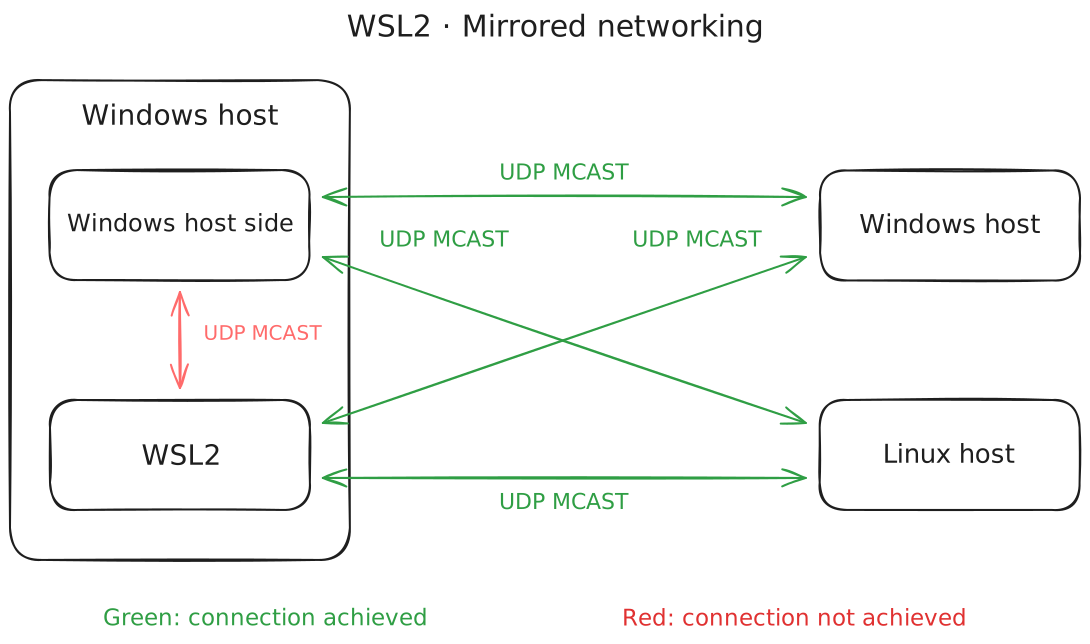
This diagram records the observed result, not a guarantee for every Windows, WSL, hypervisor, and firewall version. Test all required communication paths in the target environment.
Last resort: use TCP only
If multicast cannot be made to work, Sen can use TCP for all network traffic. This requires both TCP bus traffic and TCP-based discovery; configure every participating Sen instance consistently. See Disabling multicast entirely for the full configuration and an example discovery hub.
Warning
Use TCP-only networking only as a fallback. It introduces significantly higher latency and does not scale well: instead of multicast distributing a message once, the sender needs a separate connection and message path for each receiver, producing a star-like topology. Do not choose this mode when efficiency, latency, or scaling to many processes is important.